Electronic Product Download tool - EPD
- Once a company has purchased a license for a BMC Helix product, registered and subscribed users can download both the product (On‑Prem) and available patches directly from the BMC Helix website.
- To access the secure areas of our portal, including EPD, users must be registered on our website and subscribed to support, with an active company‑owned Subscription ID included in their profile.
- A company may have multiple Subscription IDs, each granting access to different products in EPD. If a product is not visible, the corresponding Subscription ID may not be added to the user’s profile.
If the user requires assistance with registration or does not know their company’s Subscription ID or PIN, they should contact our customer care team customer.care@helixops.ai.
- Most of our products can be downloaded using the Electronic Product Distribution portal (EPD), though there are some exceptions, like patches for older Remedy products. For those exceptions users will need to open a case with the Support team at https://www.helixops.ai/ => Resources => Support Central => Case Management => Submit and Manage Cases => Create a New Case
Users will find EPD under the “Downloads & Products” menu item on the Support Central dashboard as seen in Figure below.
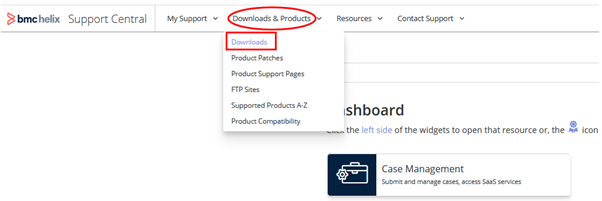 To download products & updates users must go to https://www.helixops.ai/ => Resources => Support Central => Downloads & Products => Downloads => Product Download Tool => Export Compliance and Access Terms:
- Users will need to add their Country, Company/Entity Name and Accept to access the Electronic Product Distribution portal (EPD).
Use the Electronic Product Download tool
EPD is the main interface for downloading:
- Products
- Patches
- License information
- Documentation
At the top users will have a Search bar with the following options:
-
- Product Files
- Patches
- License Information
- Documentation
Users will also be able to filter by:
- Product Category
- Subscription ID
If a user selects a specific Product Category or Subscription ID, they must click “Apply Filter” to activate the selection.
Products View
The following options are available to help users display the desired products:
Licensed Products: The products included in the Subscription ID(s) currently associated with the user’s profile.
All/Trial Products: To request products for trial.
Users can select or deselect as many options as they like from the right-hand side of the screen to display them:
- Trial Products
- Favorites
- Container Products
Downloading Products
To access the product files, users must select the relevant product version. Users will be redirected to the page for that version, where they can download the files they need.
Several tabs are available, offering the following options from left to right:
- Products
- Patches
- License Information
- Documentation
- 3rd Party Files
In this window, users will also be able to view the “Product Compatibility” (hyperlink). If they are unable to find the compatibility they need, they will need to open a case with the Support team as described earlier.
To subscribe to Product Alerts for the selected product, the user must select “Product Alerts.” Selecting the same option again will unsubscribe them from those Product Alerts.
For any issues or questions related to this KA or any other part of our website, users can contact our Customer Care team at customer.care@helixops.ai